
A freezing image or continuous loading could be caused by the network, the player or the service. Complete these seven checks before contacting support.
- Restart the player, then your device.
- Restart the router following the instructions of your service provider.
- Test internet speed on the device used: allow approximately 15 Mbit/s for the HD depending on the encoding.
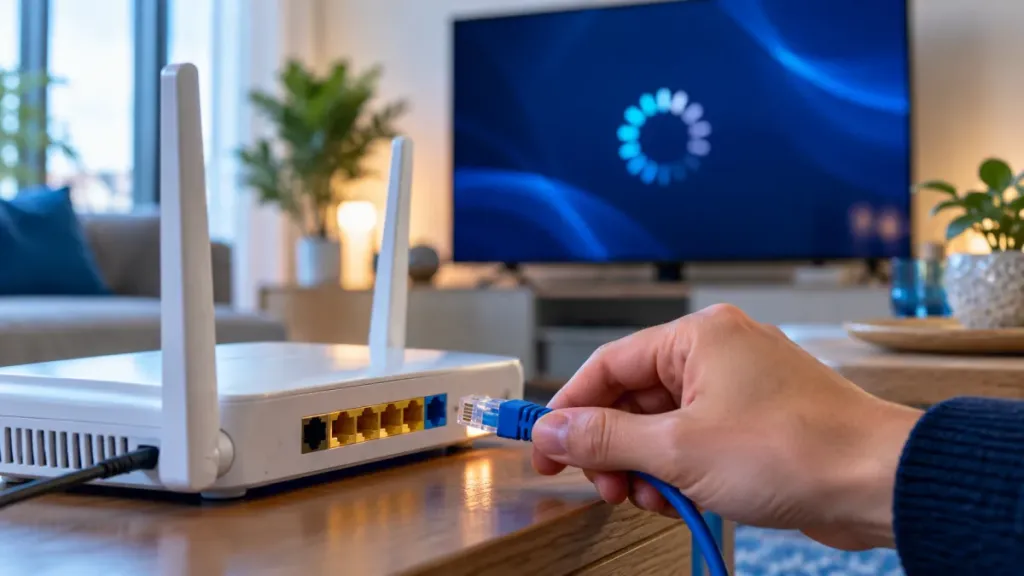
- Try an Ethernet cable or 5GHz Wi-Fi near the router.
- Suspend intensive use like downloads, updates and other videos in progress.
- Clear the drive cache from your device settings, without deleting your access.
- Reduce video quality switching from 4K to Full HD if the connection is unstable.
Does the problem persist?
Tell support the channel, the time of the blockage, your device and the tests already carried out. These details make it possible to distinguish a connection problem from an incident on a program.


